Supported printers:
Note: We recommend using EPSON Epos or Zebra LinkOS.
To connect printers to mobile apps
- Open your Android phone and navigate to Bluetooth settings.
- Search for a new device, looking for your printer, and then pair the printer and the phone together.
- When pairing the devices is done, open the app and navigate to the Settings screen.
- Open the Devices tab. Tap the drop-down arrow under Select printer to see a list of all supported printers.


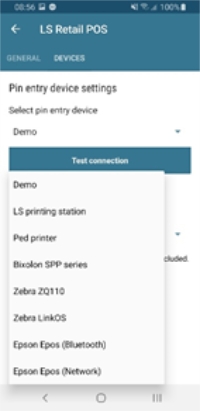
-
Select a printer to connect.
The sections below describe how to set up the different printers.
Zebra LinkOS
- When you have connected a Zebra LinkOS printer to your phone, open the app and select Zebra LinkOS from the drop-down menu.
-
Select the printer name from the Select Bluetooth printer drop-down menu.

- You are now all set and ready to use the printer.
Epson Epos (Bluetooth)
- When you have connected an Epson Epos Bluetooth printer to your phone, open the app and select Epson Epos (Bluetooth) from the drop-down menu.
- Select the printer model from the Select printer model drop-down menu that lists all supported models.
- You can also select the printer language from the Select printer language drop-down menu.


- You are now ready to start using the app and the selected printer.
Epson Epos (Network)
- When you are printing on a network printer, you can open the app directly and navigate to the Settings screen.
- Open the Devices tab, and select a printer, which in this case is Epson Epos (Network).
- Enter the printer's IP Address. Note: Make sure that your printer and the app are using the same IP Address.
- Select the printer model and, optionally, the printer language from the drop-down menus.

- You are now ready to start using the app and the selected printer.
LS Central printing station
If you select LS Central printing station in the printer list, you will be using the LS Hardware Station to print from the app.
Bixolon SPP series and Zebra ZQ110
- If you connected your phone with either a Bixolon or Zebra ZQ110 printer, you can open the app directly and navigate to the Settings screen.
- Open the Devices tab, and select a printer from the Select printer drop-down menu, in this case Bixolon SPP series or Zebra ZQ110.
- You are all set and ready to use the selected printer.